Students

My Students
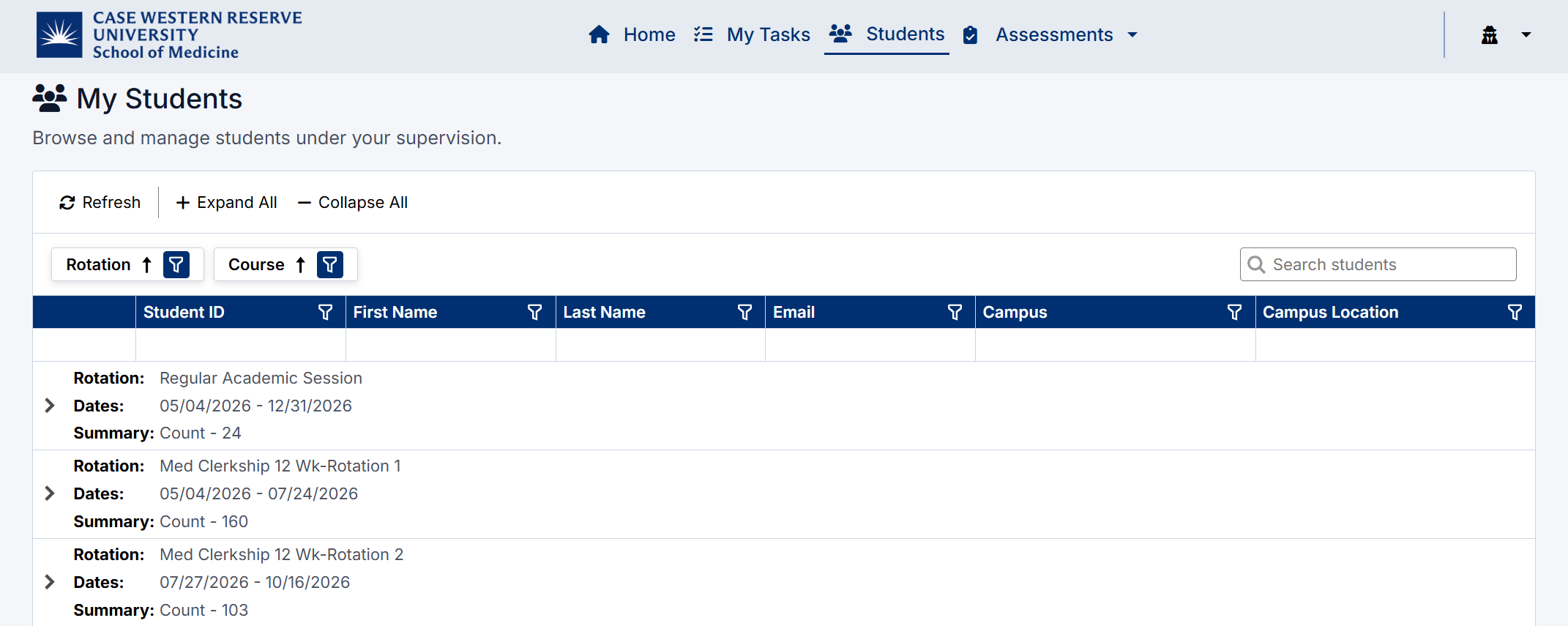
The My Students page allows you to view and manage students assigned to you within your rotations.
This page provides visibility into:
- Students under your supervision
- Their assigned rotations and courses
- High-level activity summaries
My Students Page
Accessing My Students
To view your students:
- Navigate to My Students from the application menu
- The page will display all students grouped by Rotation and Course

Understanding the Student List
Students are organized in a hierarchical view:
- Rotation – Displays the academic session and date range
- Course – Groups students within a specific clerkship or discipline
- Student – Individual student records
Each student row includes:
- Student ID
- Name
- Campus and Location
Viewing Student Details
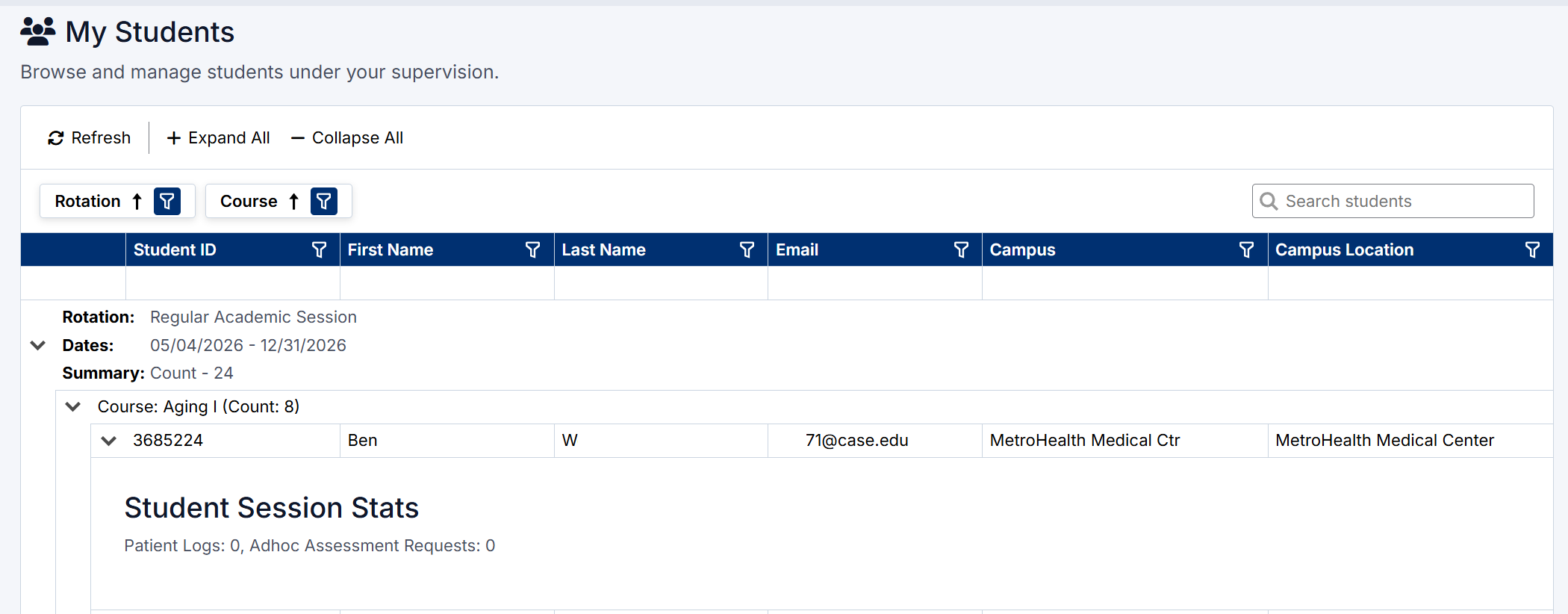
Click the expand arrow ( > ) next to a student to view additional information.
This includes:
- Student Session Stats, such as:
- Number of Patient Logs
- Number of Ad Hoc Assessment Requests
This provides a quick snapshot of the student’s activity and engagement.
Student details
Filtering and Search
You can refine the list using:
- Rotation filter
- Course filter
- Search bar to find specific students by name or email
Creating an Ad-Hoc Assessment from the 'My Students' Page
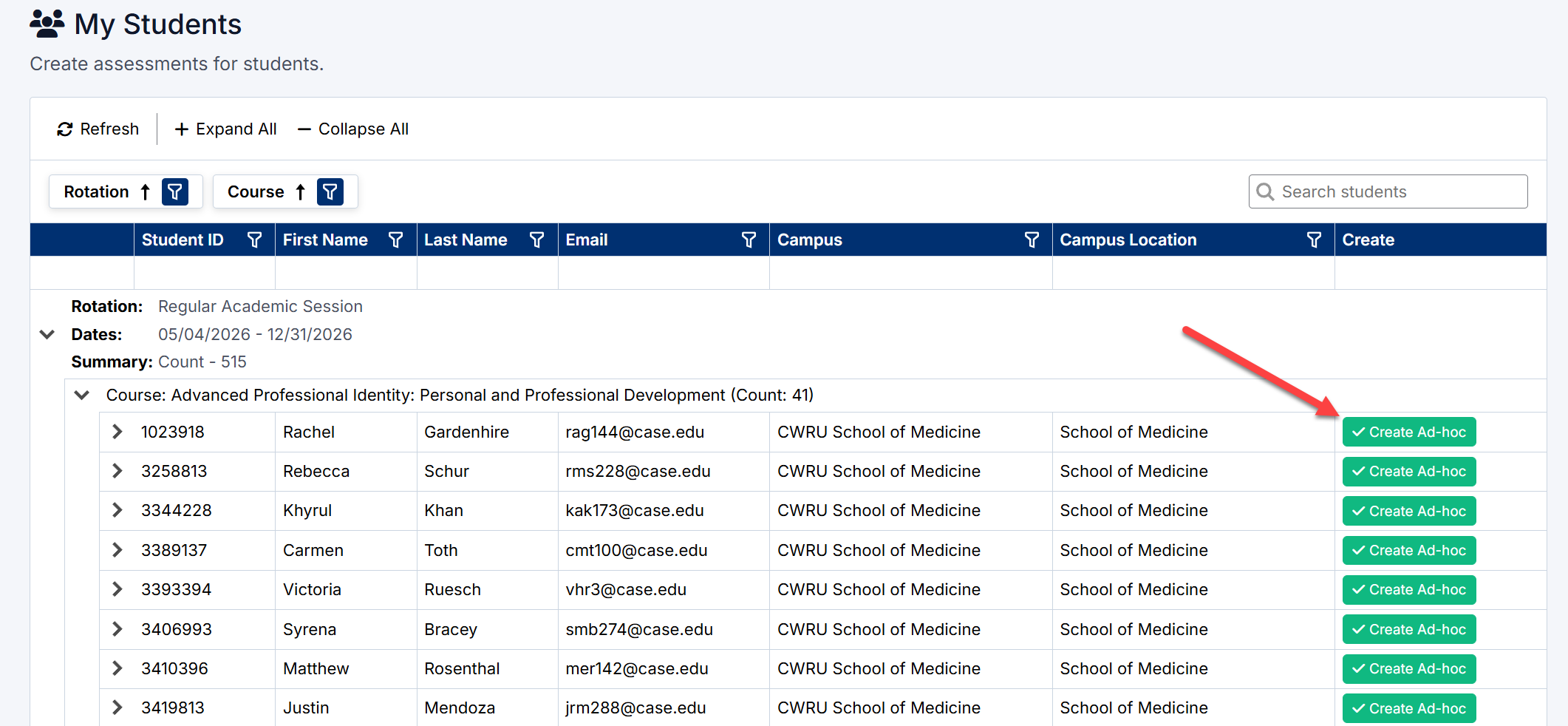
Preceptors can initiate an Ad-Hoc Assessment directly from the My Students page.
To create an assessment:
- Locate the student in the list.
- Click Create Ad-hoc.
- If the student is assigned to multiple rotations, select the appropriate rotation.
- The Ad-Hoc Assessment form will open.
- Complete the assessment and click Submit or Save as Draft.
This allows preceptors to quickly provide feedback immediately after working with a student, without waiting for the student to initiate the request.
Best Practice
Use Ad-Hoc Assessments to provide timely feedback following meaningful clinical encounters, observed activities, or important teaching moments. See Adhoc assessments for more details
Page Controls
- Refresh – Reload the latest data
- Expand All / Collapse All – Show or hide all student details
Best Practice
Use this page to quickly identify student activity levels and determine where additional support or feedback may be needed.
Created with the Personal Edition of HelpNDoc: Streamline Your Documentation Process with HelpNDoc's Project Analyzer