Ad-Hoc Assessments

Ad-Hoc Assessments
The Ad-Hoc Assessments page allows you to review and complete assessment requests submitted by students for specific clinical encounters.
Accessing Ad-Hoc Assessments
You can access ad-hoc assessments in the following ways:
From the Navigation Menu
- Click Assessments in the top navigation bar.
- Select Ad-Hoc Assessments.

From the Dashboard
- Navigate to the Home dashboard.
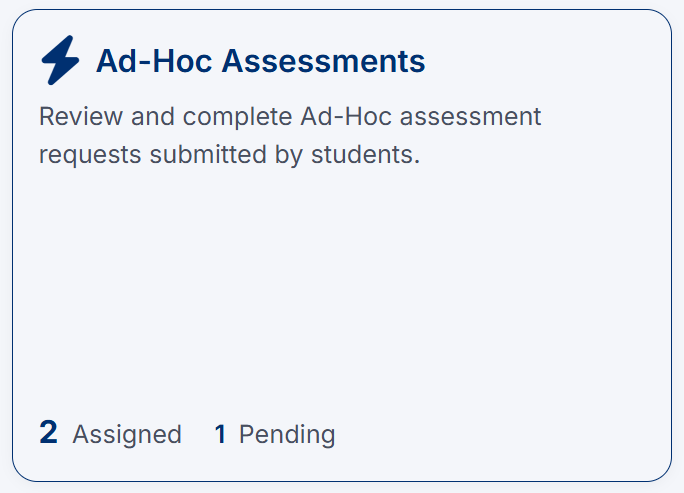
- Click the Ad-Hoc Assessments tile.
Starting an Ad-Hoc Assessment from My Tasks
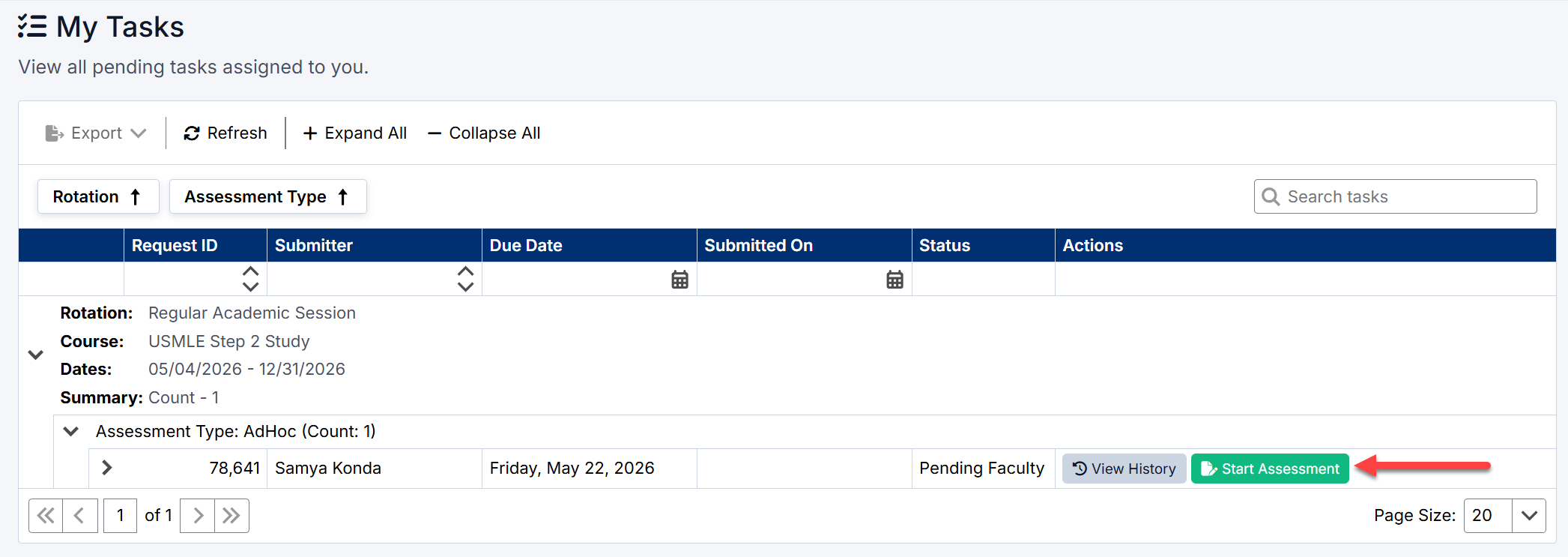
Preceptors can also begin an Ad-Hoc Assessment directly from the My Tasks page.
When a student submits an Ad-Hoc Assessment request, the request appears in your pending task list.
To begin the assessment:
- Navigate to My Tasks from the application menu.
- Locate the Ad-Hoc Assessment request in the list.
- Review the request details, including:
- Student name
- Rotation
- Due date
- Assessment status
- Click Start Assessment.
The assessment form will open, allowing you to complete and submit feedback for the student.
Additional Actions
From the My Tasks page, you can also:
- Use View History to review previous workflow activity for the request
- Expand request rows to view grouped Rotation and Course information
- Search or filter tasks to quickly locate specific requests
How Ad-Hoc Assessments Are Requested
Students may request an ad-hoc assessment in two ways:
- Through the system by submitting a request
- In person during an encounter by sharing a QR code from their mobile device
When a QR code is scanned, it links directly to the same assessment request form, allowing you to quickly access and complete the evaluation.
Viewing Assessment Requests
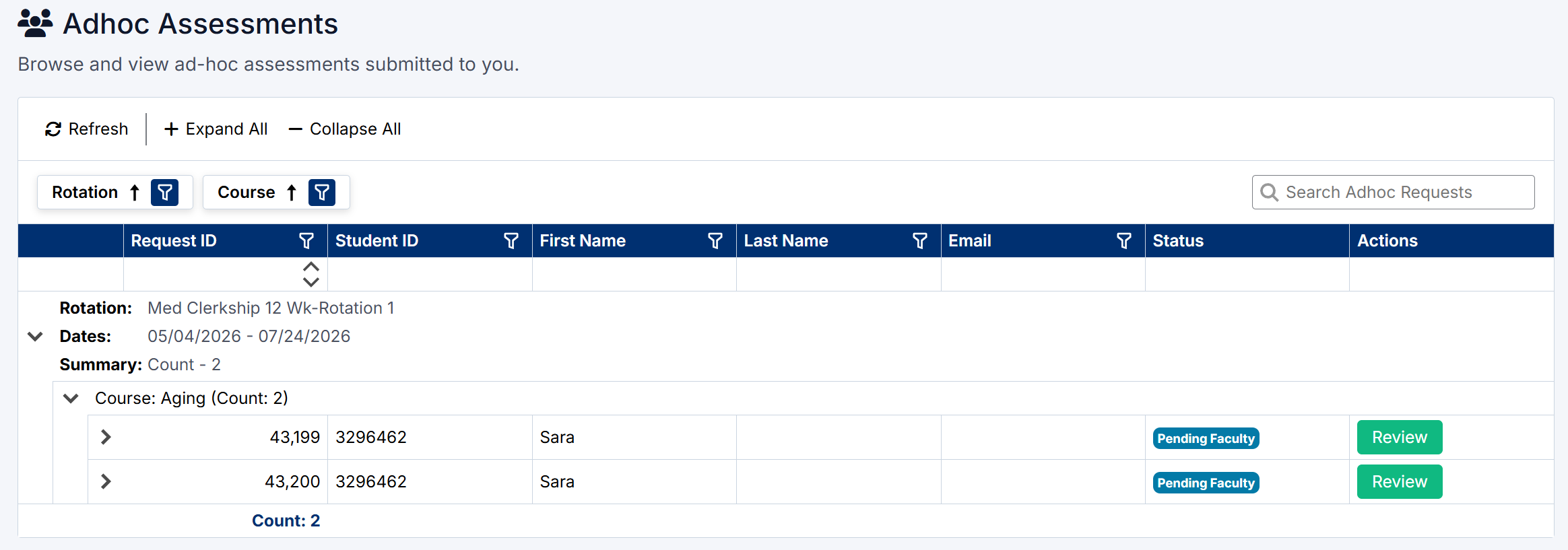
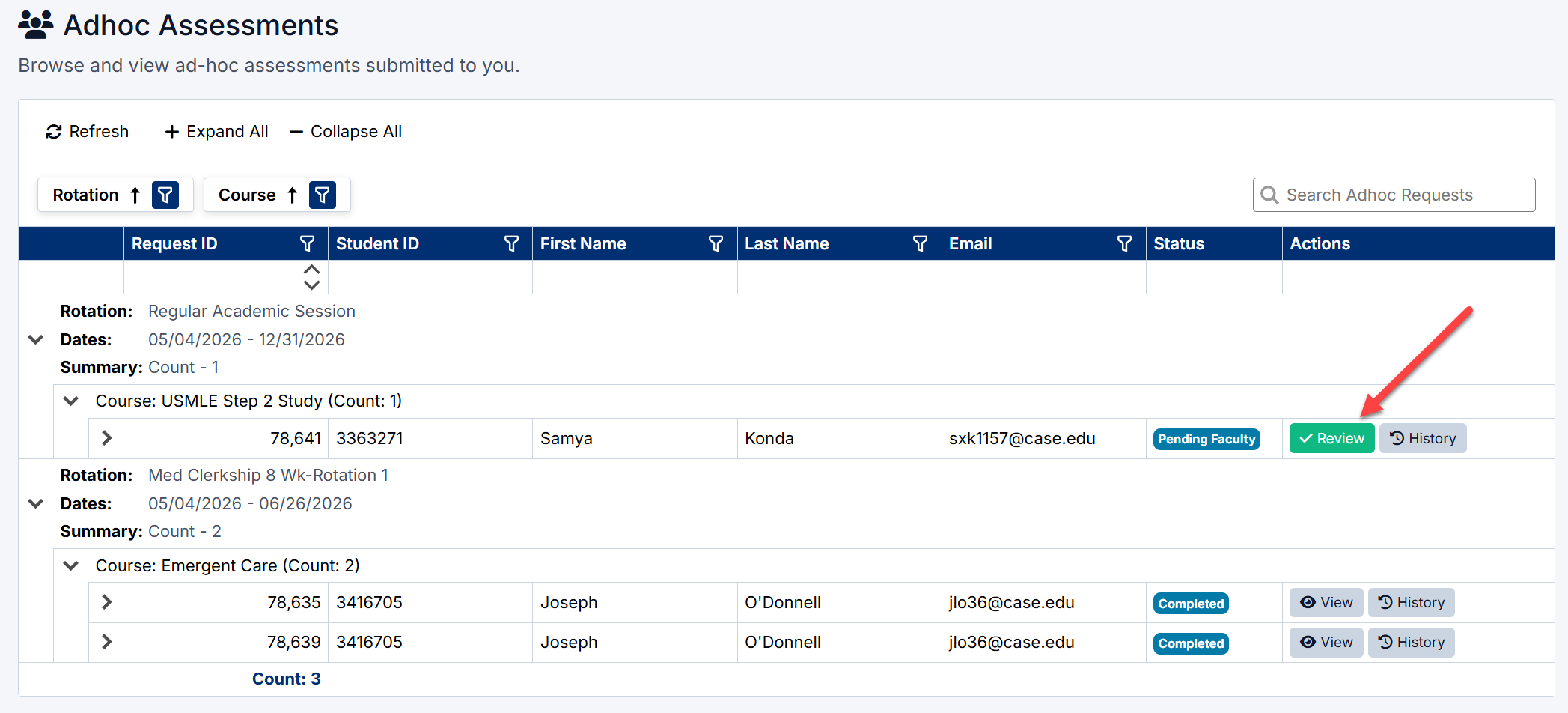
The Ad-Hoc Assessments page displays all requests grouped by:
- Rotation
- Course
Each request includes:
- Student name and ID
- Email address
- Assessment status (e.g., Pending Faculty)
- Action button (Review)
You can expand each row to view additional assessment request details, including:
- Assessment Request ID
- Session and rotation information
- Date the request was created
- Current status
Completing an Ad-Hoc Assessment
To complete an assessment:
- Locate the request in the list.
- Click Review.
- Review the assessment details.
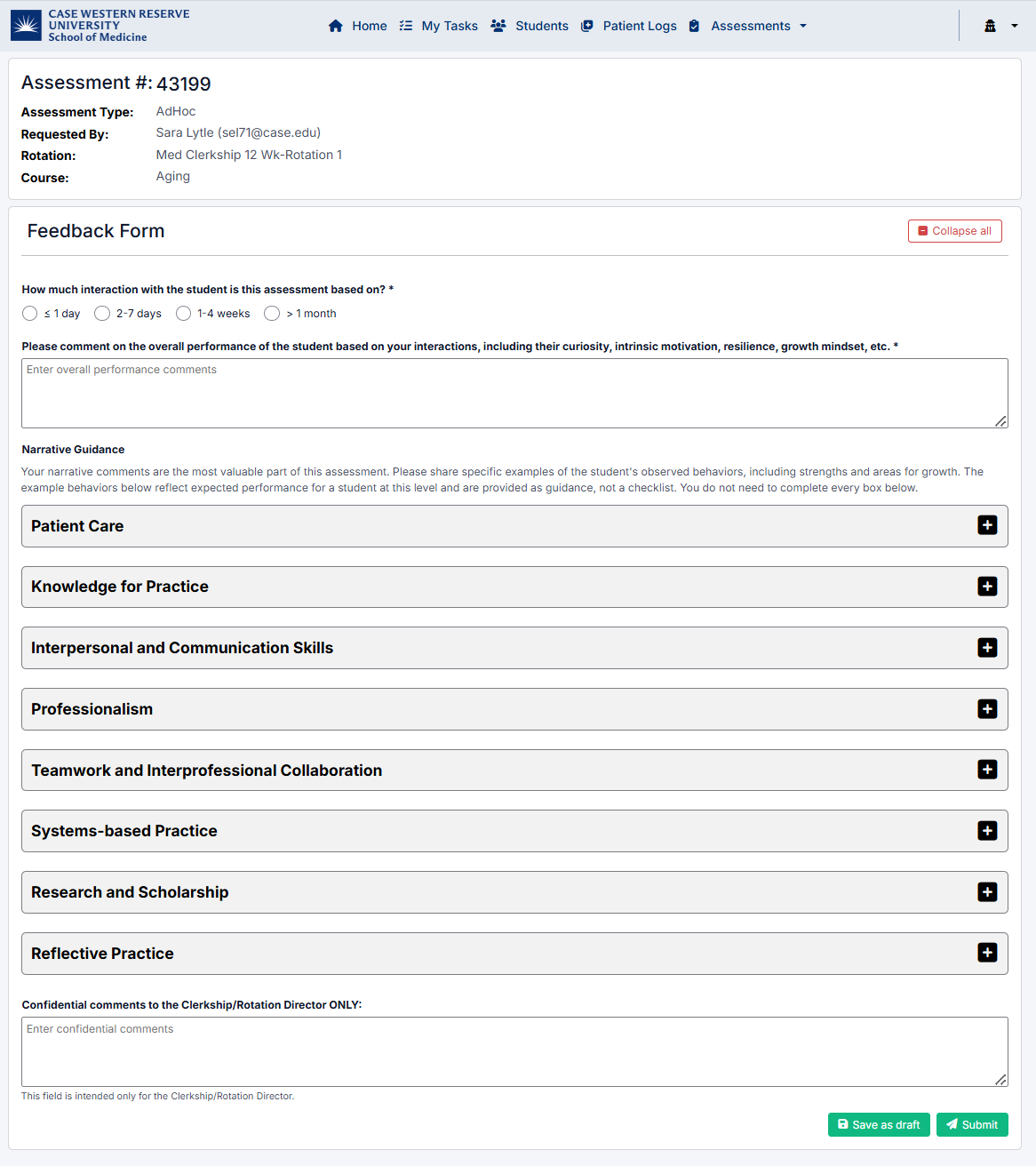
- Complete the Feedback Form, including:
- Interaction level
- Overall performance comments
- Competency-based sections (e.g., Patient Care, Communication, Professionalism)
- Add any confidential comments if required.
- Click Submit to finalize the assessment
- Or Save as draft to complete later
Assessment Form
The assessment form includes:
- Overall performance feedback
- Narrative comments
- Competency-based evaluation sections, such as:
- Patient Care
- Knowledge for Practice
- Interpersonal and Communication Skills
- Professionalism
- Teamwork and Collaboration
- Systems-Based Practice
- Research and Scholarship
- Reflective Practice
These sections can be expanded and completed as needed.
Creating an Ad-Hoc Assessment from the 'My Students' Page
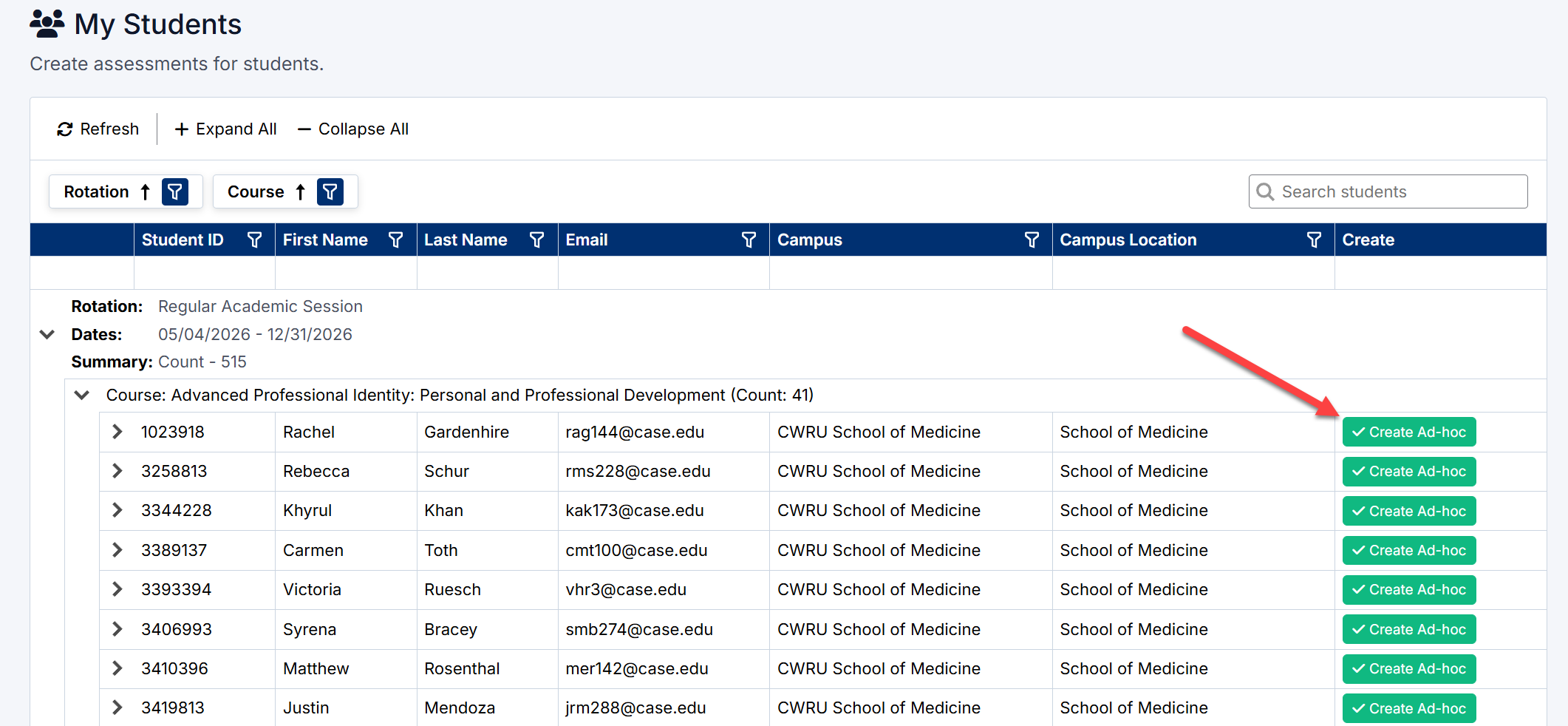
Preceptors can initiate an Ad-Hoc Assessment directly from the My Students page.
To create an assessment:
- Locate the student in the list.
- Click Create Ad-hoc.
- If the student is assigned to multiple rotations, select the appropriate rotation.
- The Ad-Hoc Assessment form will open.
- Complete the assessment and click Submit or Save as Draft.
This allows preceptors to quickly provide feedback immediately after working with a student, without waiting for the student to initiate the request.
Assessment Status
- Pending Faculty – Awaiting your review and completion
- In Progress – Assessment started but not submitted
- Completed – Assessment submitted and finalized
The Ad-Hoc Assessments page allows you to provide timely, encounter-based feedback, supporting accurate evaluation of student performance in real clinical settings.
Using the AI Assistant
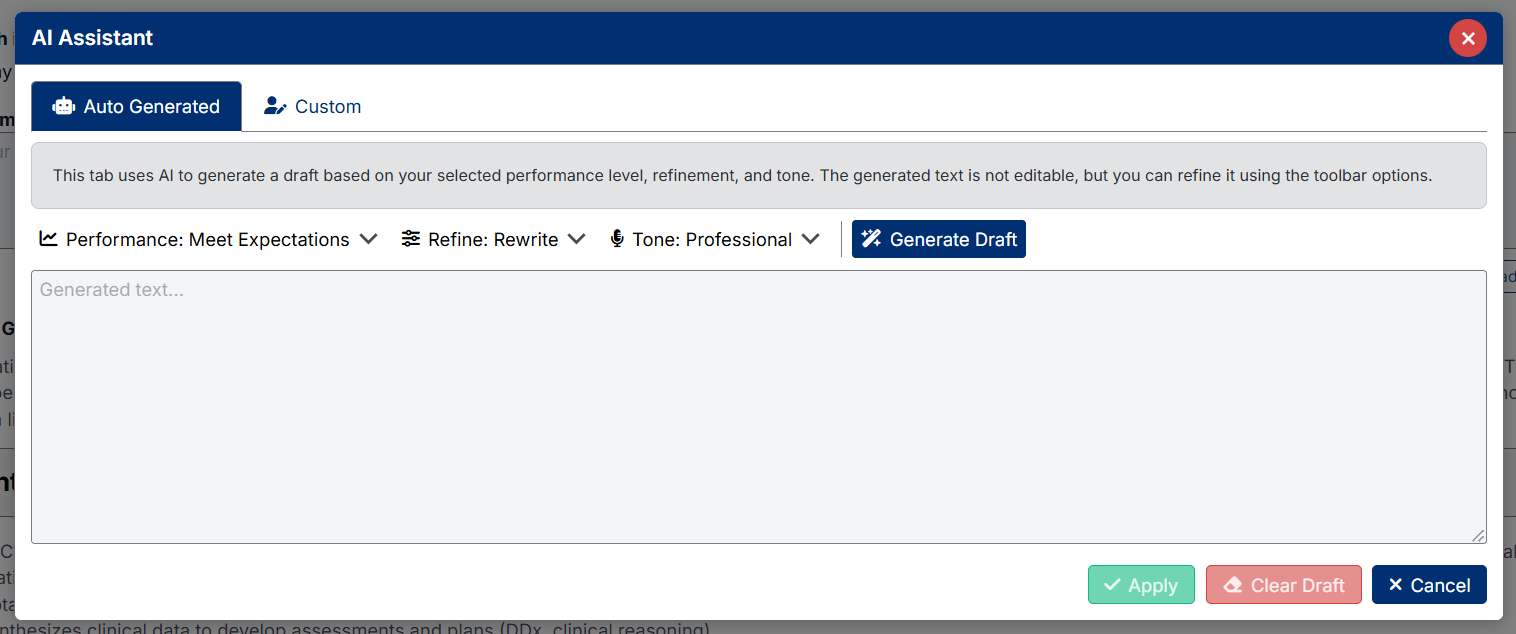
The AcademX AI Assistant is available throughout this assessment to help generate and refine narrative feedback comments.
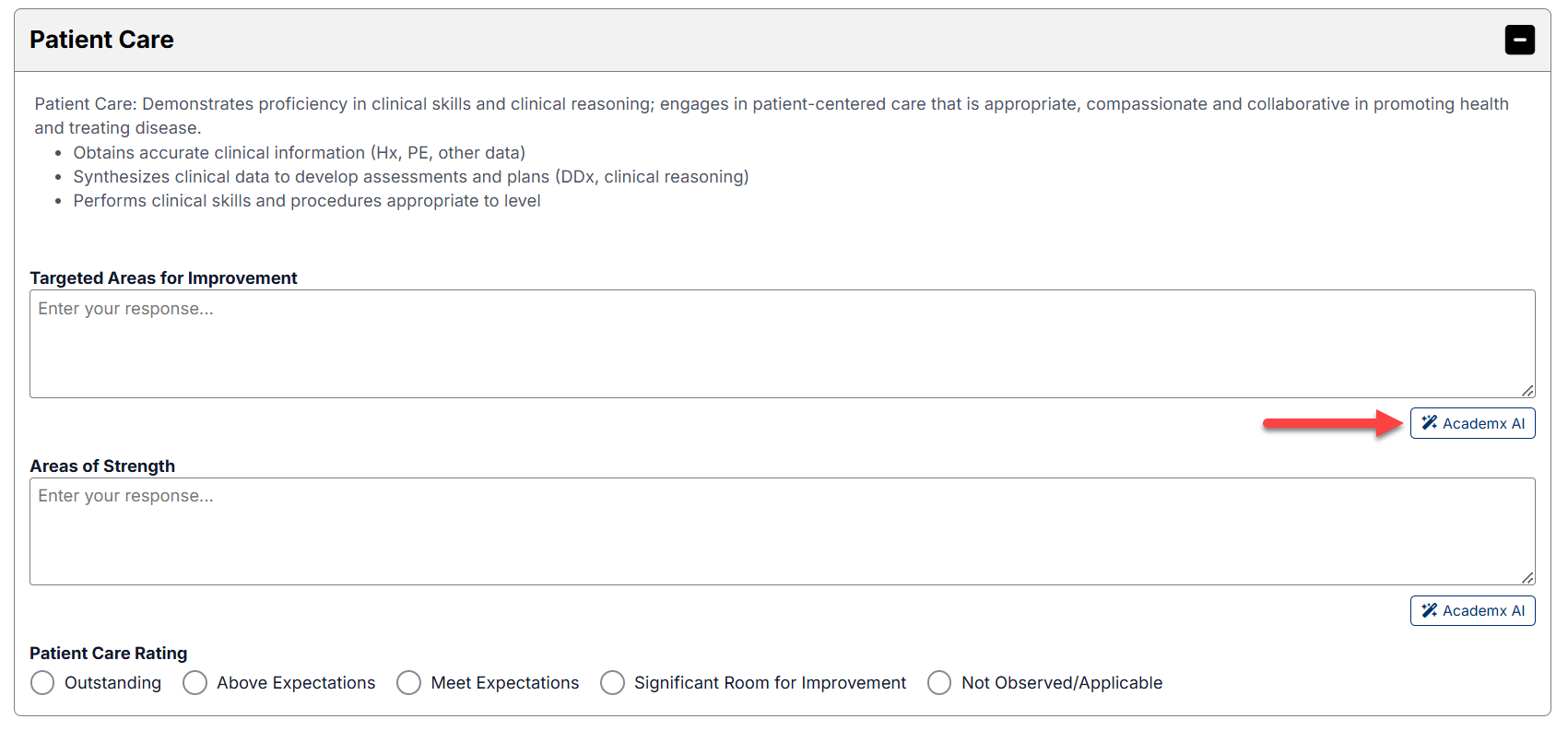
You can use:
- Auto Generated mode to create draft comments
- Custom mode to refine your own written feedback
For detailed instructions and best practices, refer to:
Created with the Personal Edition of HelpNDoc: Easily create Web Help sites