Weekly Assessments
Weekly Assessments
The Weekly Assessments page allows you to view and complete weekly evaluations for students assigned to you. These assessments provide ongoing feedback based on your interactions with students during each rotation.
Accessing Weekly Assessments
You can access weekly assessments in the following ways:
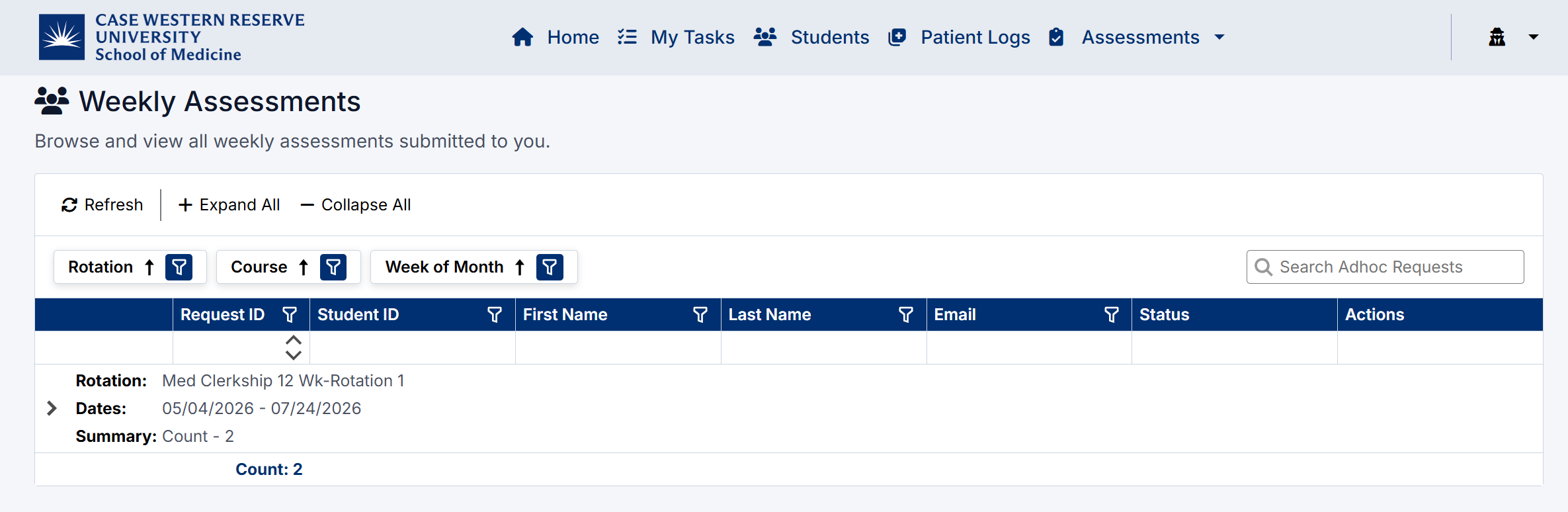
From the Navigation Menu
- Click Assessments in the top navigation bar.
- Select Weekly Assessments.

Weekly Assessment Navigation
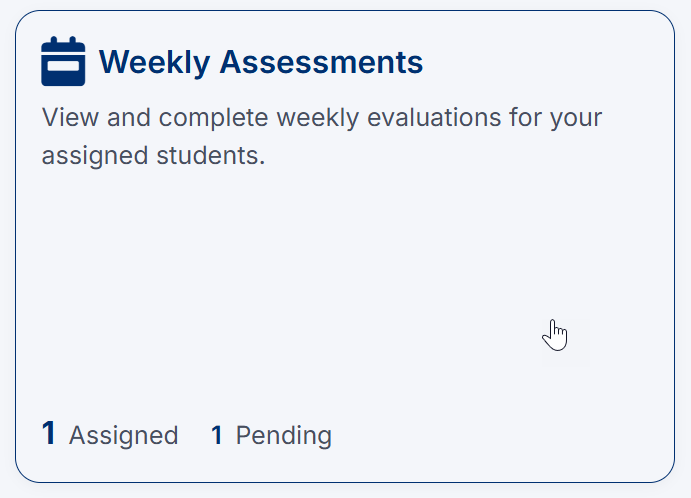
From the Dashboard
- Navigate to the Home dashboard.
- Locate the Weekly Assessments tile.
- Click Weekly Assessments.
Viewing Weekly Assessment Requests
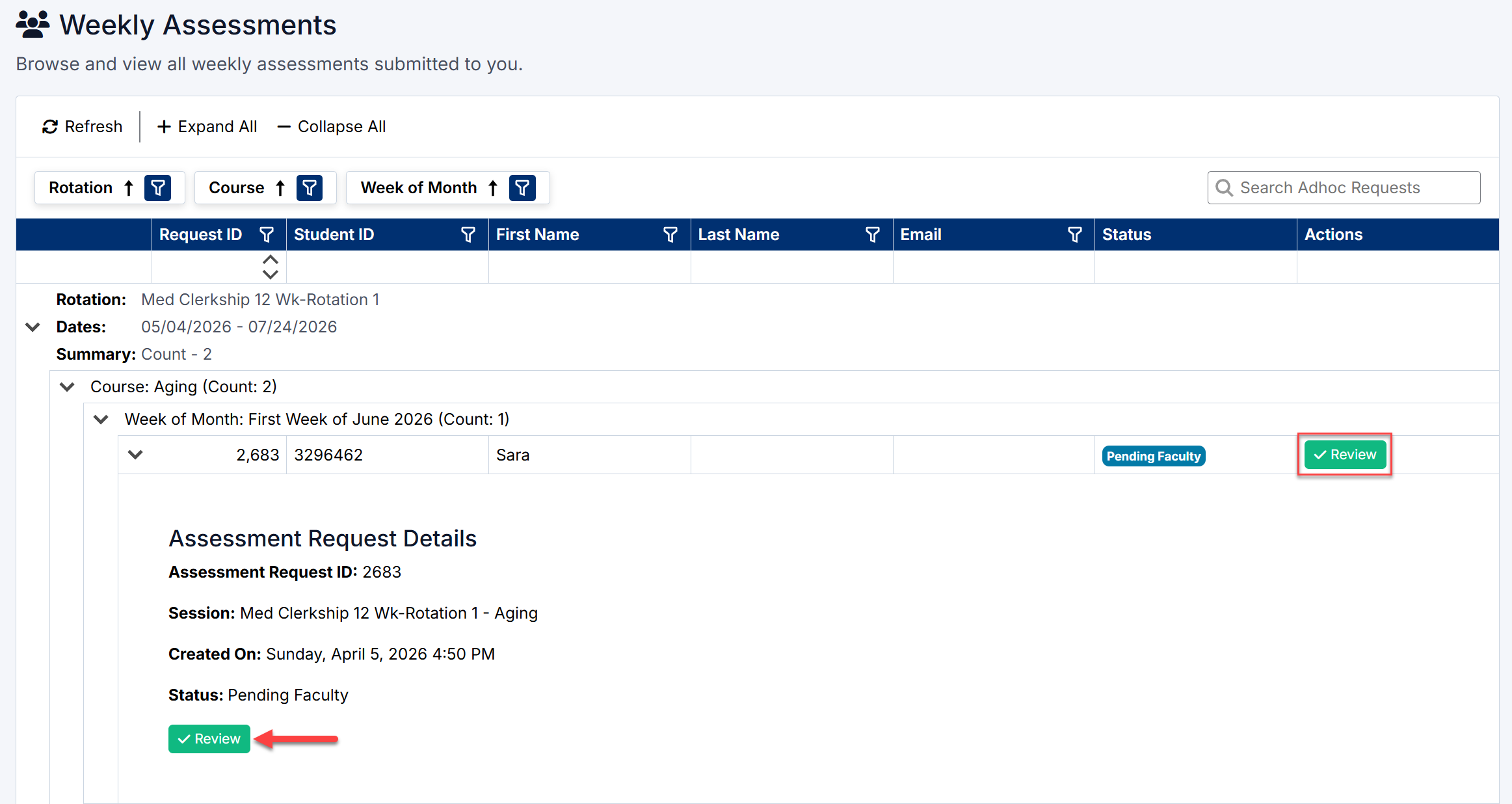
The Weekly Assessments page displays all student requests grouped by:
- Rotation
- Course
- Week of Month
Each request includes:
- Student name and ID
- Assessment status (e.g., Pending Faculty)
- Action button (Review)
Use the Expand All / Collapse All options to quickly navigate through grouped data.
Reviewing Assessment Details
To review a request:
- Locate the assessment.
- Click Review.
You will be taken to the assessment details page, which includes:
- Assessment information (type, student, rotation, course)
- Associated patient logs submitted by the student
Reviewing Patient Logs
Each weekly assessment may include one or more patient logs that the student has selected to support their request.
To review a patient log:
- Locate the log under the Patient Logs section.
- Click View Log.
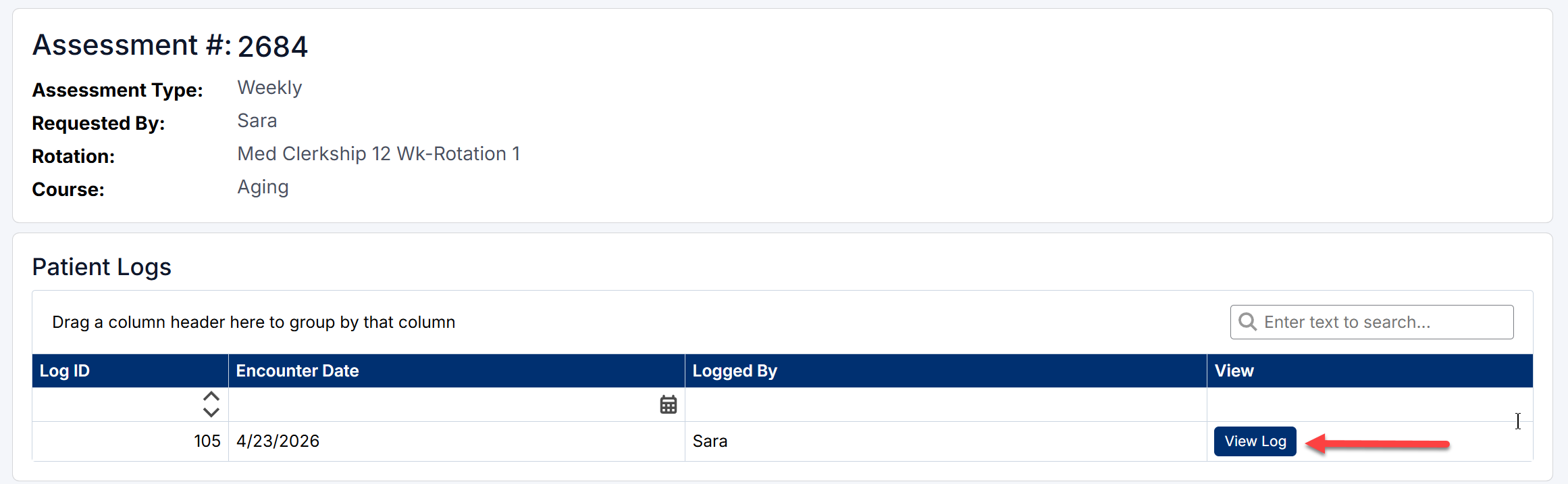
This will open detailed information including:
- Encounter details (date, setting, preceptors)
- Patient demographics
- Clinical conditions
- Observed activities and student involvement
Reviewing these logs provides important context for completing the assessment.
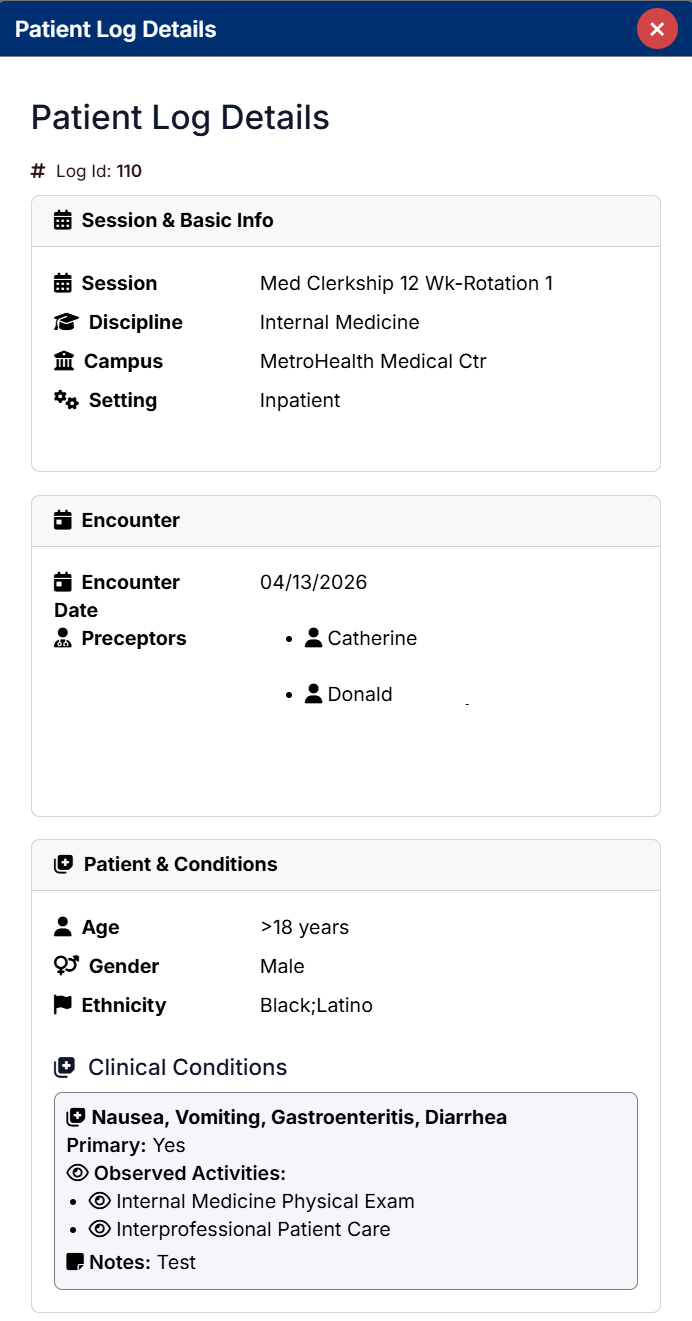
View Weekly Assessment Patient Logs Details
Completing the Assessment
To complete the assessment:
- Review the assessment details and patient logs.
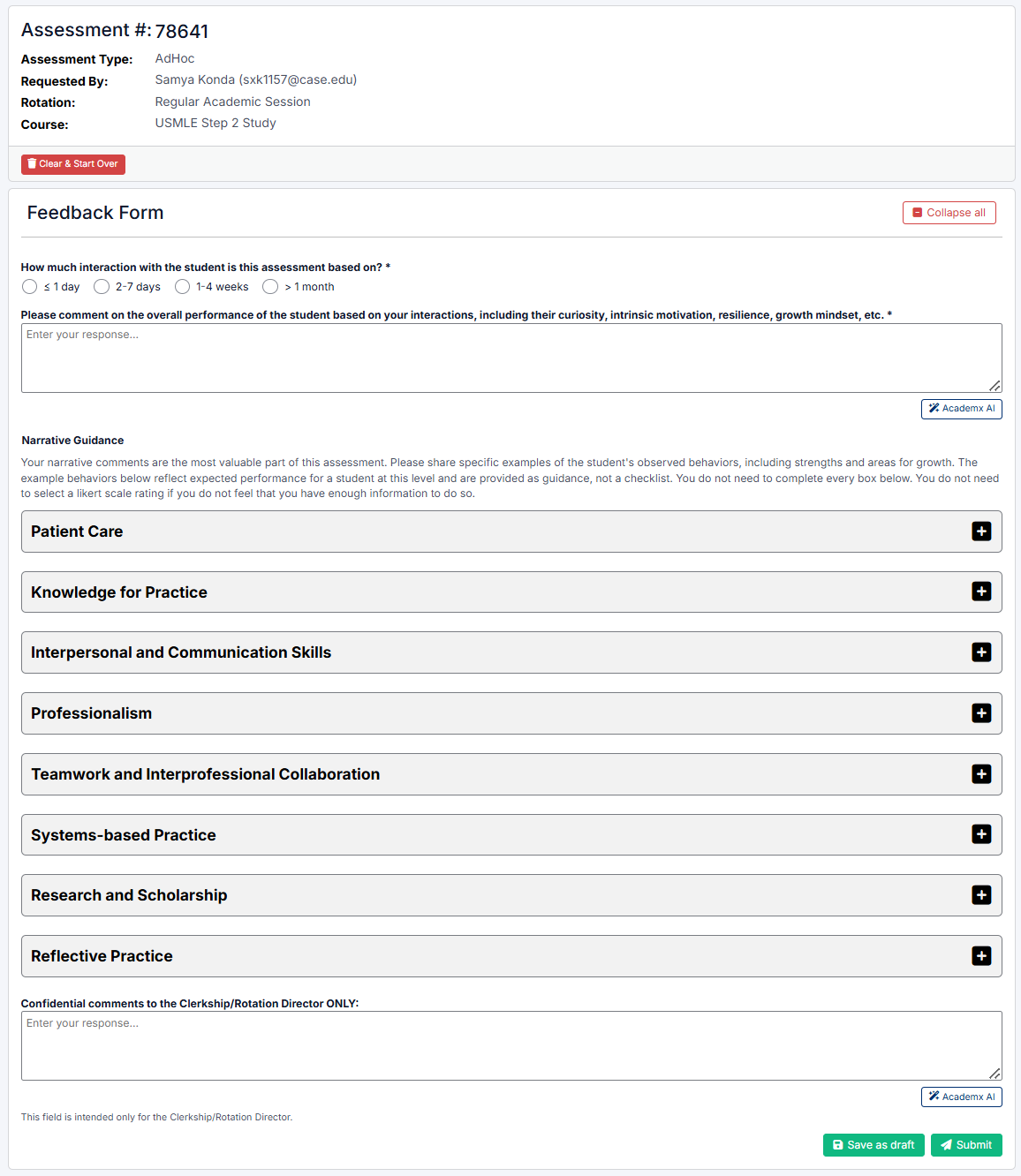
- Scroll to the Feedback Form section.
- Complete the required fields, including:
- Interaction level
- Overall performance comments
- Competency-based sections (e.g., Patient Care, Professionalism, Communication)
- Add any confidential comments if required.
- Click Submit to finalize the assessment
- Or Save as draft to complete later
Assessment Status
- Pending Faculty – Awaiting your review and completion
- In Progress – Assessment started but not submitted
- Completed – Assessment submitted and finalized
The Weekly Assessments page ensures that student performance is reviewed regularly and that feedback is based on real clinical interactions and documented patient encounters.
Using the AI Assistant
The AcademX AI Assistant is available throughout this assessment to help generate and refine narrative feedback comments.
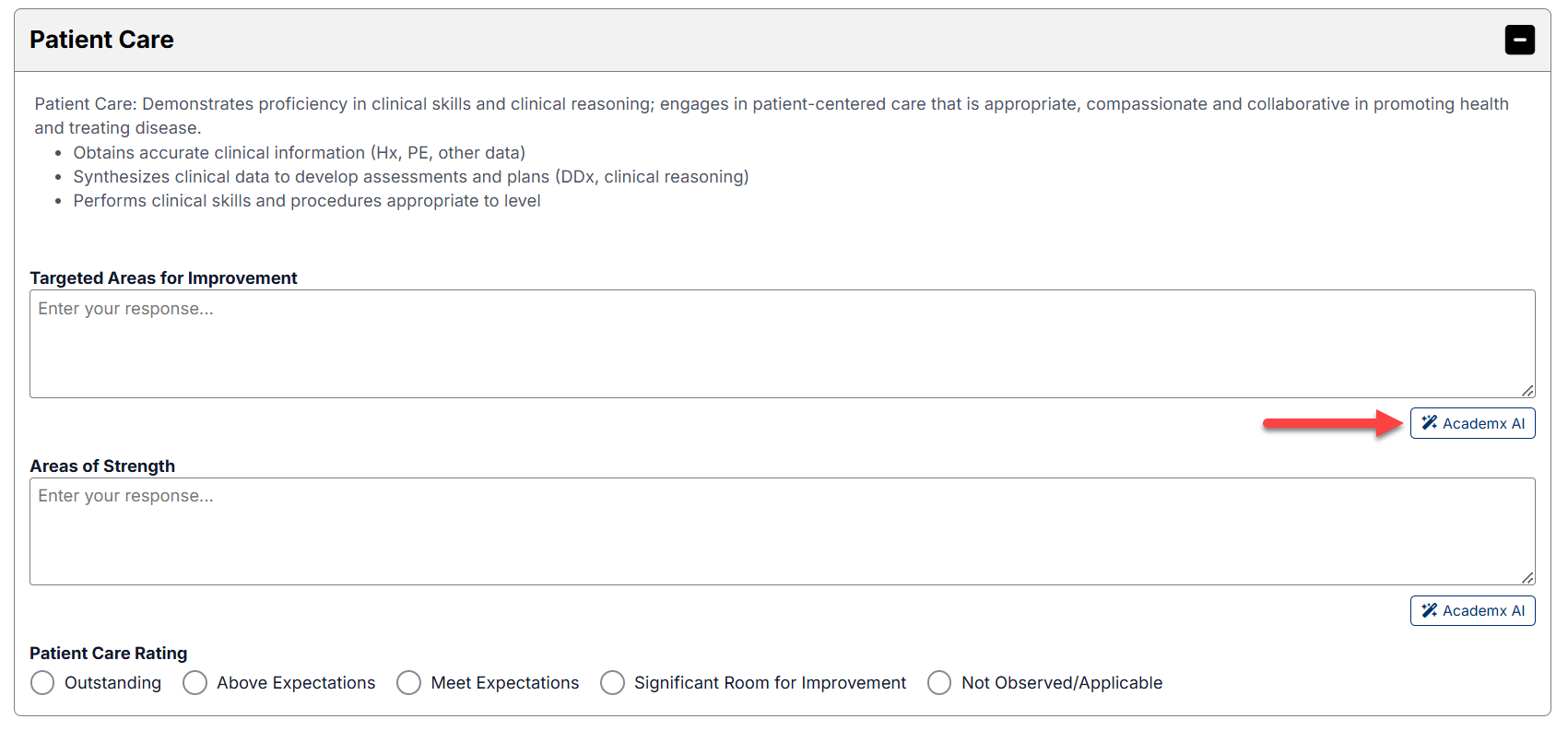
You can use:
- Auto Generated mode to create draft comments
- Custom mode to refine your own written feedback
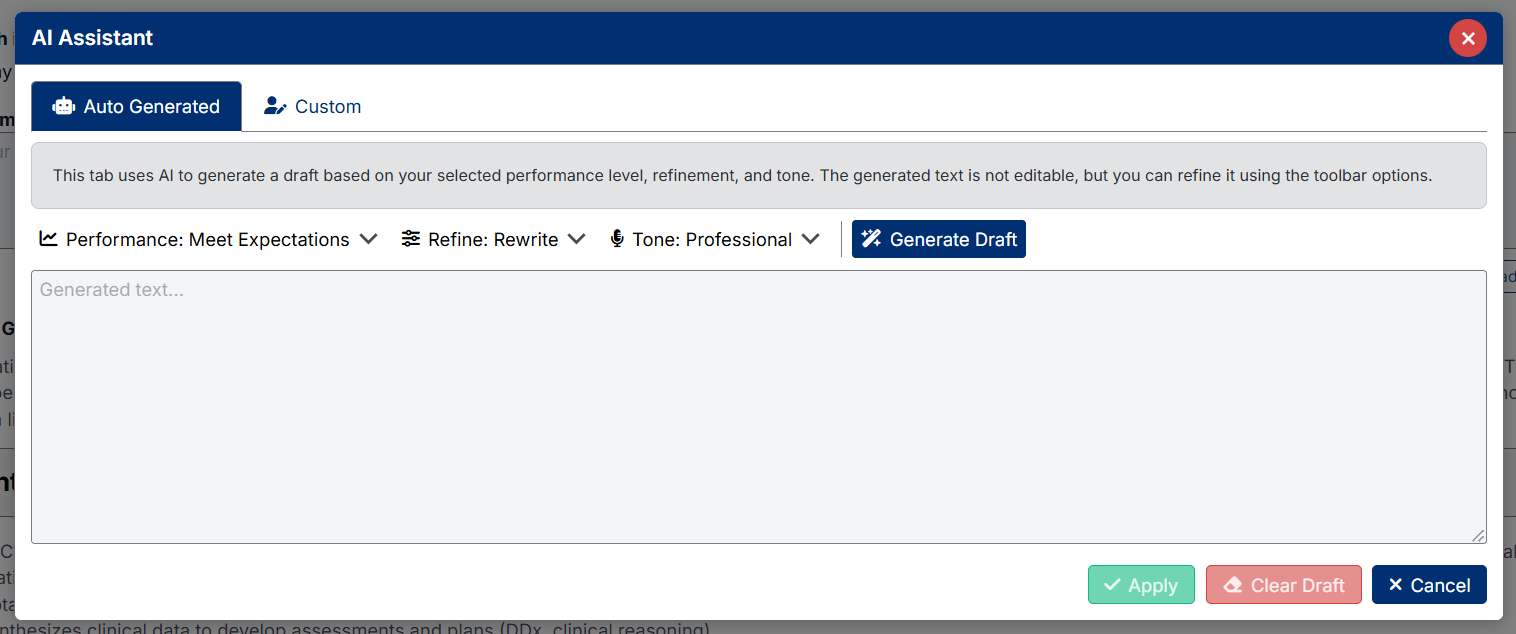
For detailed instructions and best practices, refer to:
Created with the Personal Edition of HelpNDoc: Experience the Power and Ease of Use of HelpNDoc for CHM Help File Generation